
TV Cast Pro for Samsung TV
2kit consultingVideo Players & Editors
4.0174.00 Reviews
- Version
- 2.68
- Installs
- 50.00K
- Age Rating
- Everyone
Screenshots
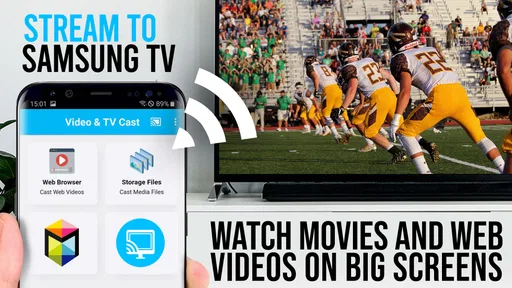
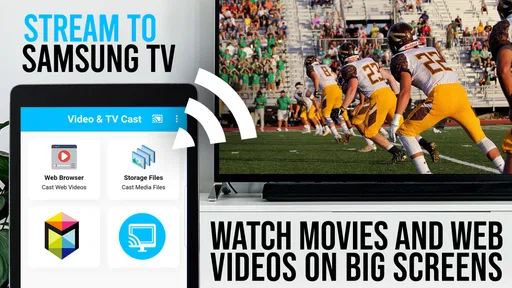
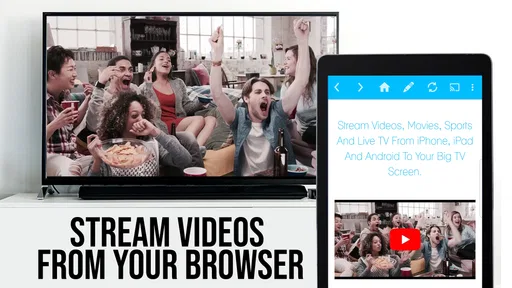
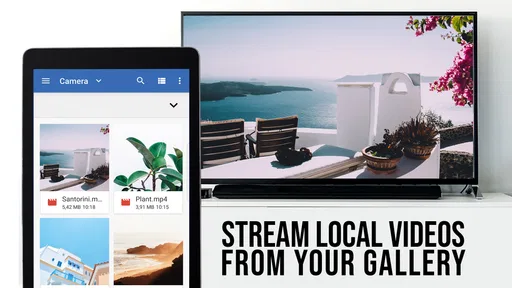
Our Review of TV Cast Pro for Samsung TV
 Analysis by Appyee
I approach TV Cast Pro for Samsung TV as a way to move web video from a phone to a larger screen, rather than as a replacement for every streaming app already on a television. That distinction matters for a first-time user: the useful moment is finding a video in a browser and getting it onto the TV, while the experience still depends on the site, the home network, and the television working together. I’d consider it when I want to watch something online that is awkward to view on a phone, but I wouldn’t expect it to make every website behave like a dedicated TV app.
It is a paid video-player and editing app from 2kit consulting, priced at $6.99, with an Everyone age rating. It has a 4.0 average from around 1.8 thousand ratings and more than 50 thousand installs. Those figures suggest a product people actively use, though they do not tell me whether a particular video site will cast cleanly. Its release dates back to November 3, 2016, and the current version is 2.68, with Android 7.0 as the minimum operating system. For a new user, the practical point is to check that the phone meets that OS requirement and that the Samsung TV is the device this edition is intended for.
What to expect from a browser-based cast
The appeal here is flexibility. A dedicated service app is usually the simpler choice when I already know what I want to watch and that service has a Samsung TV app. A browser-casting tool is more useful when the video lives on a web page, a live stream is embedded in a site, or I want to browse from my phone and send the viewing experience to the living room. That extra reach comes with a trade-off: websites vary, and a video that plays on a phone is not automatically guaranteed to cast in the same way.
I would set expectations around the job the app is meant to do, not around a promise of universal compatibility. It can be a convenient bridge between web content and a Samsung television, but it does not remove the effects of a weak Wi-Fi signal, a site’s own player, or changes to how a page delivers video. If a stream is important, I’d test it before settling in for a long watch rather than assuming every page will work equally well.
First setup: make the connection routine
Before opening the app, I’d put the phone and Samsung TV on the same Wi-Fi network and make sure the television is awake and available. That small check is more useful than repeatedly tapping through the app when the TV does not appear. If the devices are on separate networks—for example, one is connected to a guest network—the first connection can become confusing even when both devices have internet access.
After installing it, I’d open the app and give it a moment to locate the television. Once it is visible, I’d begin with a short, ordinary web video rather than a long movie or a live event. This is a low-stakes way to learn what the controls do and to see whether the connection is stable in the room where I plan to watch. If the TV is not detected, I’d first check the shared network and the TV’s connection, then reopen the app; changing several settings at once makes it harder to identify what fixed the problem.
The app is aimed at Samsung TV owners, so I would not buy it on the assumption that the same workflow will work equally well with another television brand. Even if a different smart TV happens to respond, the sensible first choice is the version designed for the TV I actually own. I’d also confirm that I’m installing the Samsung-focused edition, since similarly named casting apps can target different television platforms.
The first successful watch
For a first test, I’d choose a web page with a video I can start and pause easily. I’d browse to it on the phone, start playback, and use the app’s casting controls to send the video to the television. Keeping the phone nearby helps while I’m learning the handoff; once playback is underway, I can pay attention to the TV rather than continuing to poke at the screen. The initial goal is simply to confirm that the video appears on the big screen, not to troubleshoot every optional setting at once.
A realistic use case is finding a cooking demonstration or a short tutorial while standing in the kitchen, then watching it on the TV where the steps are easier to see. Another is opening a web-hosted clip someone has sent me rather than searching for the same item in a separate television app. For live streams, I’d test ahead of time: live video is less forgiving than a short clip if the page takes time to load or the connection falters.
If playback stutters, I would check the home connection before blaming the app. The phone and television both need a dependable path through the network, and a strong signal on the phone alone does not guarantee the TV is receiving a stable stream. Moving closer to the router or pausing other heavy network activity can be a useful diagnostic step. If only one website fails while other videos work, the site’s player is a more likely source of friction than the basic TV connection.
Browsing, bookmarks, and small workflow wins
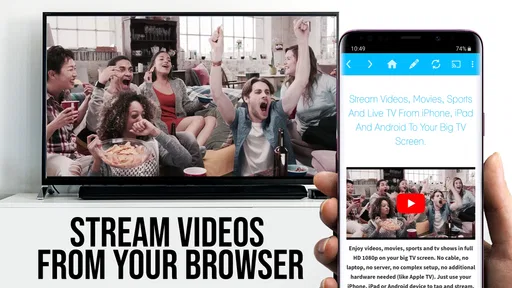
The built-in browsing approach is most helpful when I want to keep the discovery and casting steps together. I can search for a page on the phone, inspect what is available, and then send a suitable video to the TV without first hunting for a matching app on the television. That is a different habit from choosing a streaming service on the TV and searching there, and it tends to suit people who already find links on their phones.
Bookmarking favorite websites is a practical time-saver when I regularly return to the same source. I’d use bookmarks for sites I trust and visit often, rather than saving every page I happen to open. That keeps the list useful and cuts out repeat typing, especially when a long address is awkward to enter on a mobile screen. A bookmark is a shortcut to a site, though; it does not guarantee that every video on that site will be available to cast.
For a smoother first session, I’d separate browsing from troubleshooting. First confirm that the TV can be found, then try one video, and only after that explore the playback options. If a page contains several clips or pop-ups, select the intended video carefully before casting. This is a small but important habit: browser pages can contain more than one playable item, so a mistaken selection may look like a casting failure when the app has simply picked the wrong content.
Where it differs from familiar alternatives
Compared with using a native streaming app on the Samsung TV, this approach is less direct but can reach web content that may not have a convenient TV app. Native apps usually offer a more polished remote-control experience and are my preference for services I watch every week. A phone-to-TV casting workflow is more appealing for one-off links, web-based video, or browsing that is easier on a touchscreen.
Compared with connecting a laptop by cable, a wireless setup avoids running a cable across the room and lets me browse from the phone. The trade-off is that wireless playback relies more on the network and on the way a website handles its video. A cable can be the more dependable fallback for a crucial presentation or a stream that must work on the first try. I see this app as a convenience tool, not a reason to discard other ways of getting video onto a screen.
It also differs from simply mirroring a phone display. A browser-casting workflow is intended to send web video to the TV, rather than make every phone notification, menu, and screen action part of the picture. That can be preferable when I want to keep using the phone for something else. If my real goal is to show an app interface or a photo gallery rather than play a web video, a screen-mirroring option may be a better match.
Common confusion and sensible limits
The first question I’d ask when a video does not appear is whether the page itself is playing properly on the phone. If it is not, the TV connection is unlikely to solve that problem. If it plays on the phone but not on the television, I’d try a different video on a familiar site. That comparison helps distinguish a page-specific issue from a broader network or TV-discovery problem without turning the setup into guesswork.
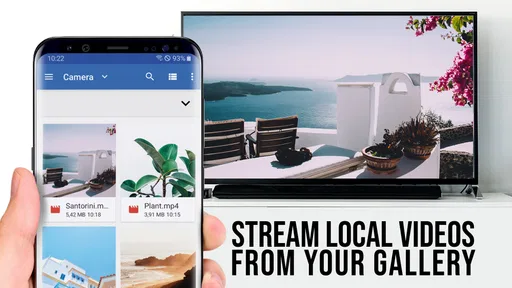
It is also worth distinguishing internet streaming from playing a file already stored on the phone. The app’s purpose is centered on web videos, online movies, and live streams, so I would not assume that every local file workflow is identical to browsing a website. When my goal is simply to play a personal video file, a player or transfer method designed for local media may be more straightforward.
Some users will want an uninterrupted, consistent experience across every site. I would be cautious about choosing a browser-based caster for that expectation: websites can change their video players, and not all streams behave alike. If I mainly watch a handful of major services, their native Samsung TV apps are likely the simpler everyday option. If I often follow links from different sites and value phone-based browsing, this app has a clearer reason to be on the phone.
Who will get the most from it
I think it fits Samsung TV owners who regularly discover video in a mobile browser and want a convenient route to the larger screen. It can also suit someone who occasionally watches online movies or a live stream from a web page and prefers not to rely on a cable. The strongest case is a person with a specific web source in mind, a stable shared Wi-Fi network, and enough patience to test a new site before making it part of a regular routine.
I’d skip it if I rarely watch web video, already have all my favorite services available as TV apps, or want a casting method that behaves exactly the same on every device and website. I’d also think twice if I’m buying it for a non-Samsung television without first checking compatibility. The upfront price makes the decision worth considering: the convenience is meaningful only if I expect to use the browser-to-TV workflow more than occasionally.
Its 4.0 average rating gives a useful broad signal, but I would not treat a rating as a substitute for testing my own network and the sites I watch. The value is personal: someone who often streams from web pages may find the shortcut worthwhile, while someone who opens a TV app and presses play may not need another tool in the chain.
Getting Started with TV Cast Pro
First off, you’ll need to grab the TV Cast Pro for Samsung TV app from your app store. Installation is smooth and straightforward, with a simple interface that even my tech-averse grandma could navigate. Once you’ve got it installed, just make sure your phone and TV are connected to the same Wi-Fi network. The app will automatically detect your TV, and you’re ready to start casting.
User Interface and Experience
The user interface is clean and intuitive, which is a breath of fresh air in a world filled with cluttered screens. You can easily find your way around the app, with sections dedicated to browsing, casting, and managing your playback options. The design is minimalistic, yet functional, allowing you to focus on what really matters: streaming your favorite content.
One feature I particularly appreciate is the ability to bookmark your favorite websites for quick access. No more typing in lengthy URLs every time you want to watch a show. Just a tap, and you’re there. It’s these little conveniences that make TV Cast Pro stand out from the crowd.
Performance and Compatibility
When it comes to performance, this app delivers. Videos stream smoothly, with little to no buffering, provided your internet connection is up to par. I tested it with a variety of content, from YouTube clips to full-length movies, and it handled everything like a champ. There’s support for a wide range of formats, so whether you’re watching a high-def video or an old-school MP4, you’re covered.
It’s worth noting that while this app is designed specifically for Samsung TVs, it may work with other smart TV models. However, for the best experience, stick with Samsung.
Additional Features Worth Mentioning
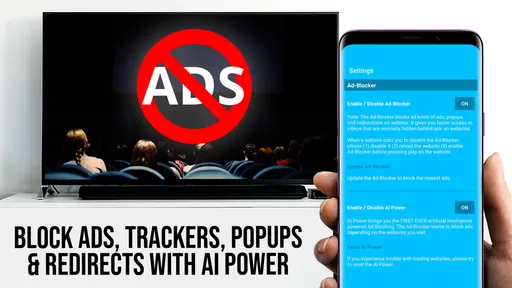
One of the nifty features of TV Cast Pro is the ability to block ads directly on your TV. This is a game-changer if you’re tired of being interrupted by commercials during your binge-watching sessions. Additionally, the app allows you to customize the subtitle settings, which is a nice touch for those who watch a lot of foreign films or need subtitles for accessibility reasons.
Another cool feature is the option to cast from cloud storage. This means you’re not limited to the videos stored on your device. You can stream directly from your Google Drive or Dropbox, making it super convenient to access all your media files in one place.
Final Thoughts
In conclusion, TV Cast Pro for Samsung TV is a fantastic tool for anyone looking to enhance their streaming experience. Its ease of use, robust performance, and handy features make it a standout choice for Samsung TV owners. Whether you’re a tech-savvy streamer or just someone who wants to watch videos on the big screen without the hassle, this app has got you covered.
So, if you’re tired of squinting at your phone screen and longing for a more cinematic experience, give TV Cast Pro a try. Your TV will thank you.
Verdict
Strengths of TV Cast Pro for Samsung TV
- Stream videos directly to Samsung TV.
- Supports multiple video formats.
- No ads for uninterrupted viewing.
- User-friendly interface and setup.
- Works with various streaming sites.
Limitations of TV Cast Pro for Samsung TV
- Requires stable internet connection.
- In-app purchases for full features.
- Limited to Samsung Smart TVs.
- Initial setup can be tricky.
- No support for older TV models.
Other Releases by 2kit consulting
View All
TV Cast Pro for Fire TV
Video Players & Editors4.1

TV Cast | Ultimate Edition
Video Players & Editors4.0

Screen Mirroring + for Fire TV
Tools4.4

Screen Mirroring Pro for Roku
Tools4.5
Similar Picks in This Category
View All
Google TV
Google LLC3.9

iTunes
Apple4.7

YouTube
Google LLC3.8

MX Player
Amazon Mobile LLC4.2

CapCut - Video Editor
Bytedance Pte. Ltd.3.5

PLAYit-All in One Video Player
PLAYIT TECHNOLOGY PTE. LTD.4.5
Frequently Asked Questions
How do I set up TV Cast Pro on my Samsung TV?
Setting up TV Cast Pro on your Samsung TV is straightforward. First, ensure your TV and phone are connected to the same Wi-Fi network. Download the app on your device, open it, and select your Samsung TV from the list. Follow the on-screen instructions to complete the setup and start streaming your favorite content.
Is TV Cast Pro compatible with all Samsung TV models?
TV Cast Pro is compatible with most Samsung Smart TV models released after 2012. However, it is always a good idea to check the app’s compatibility list on their official website or app store page before downloading to ensure your specific model is supported.
What content can I stream using TV Cast Pro?
With TV Cast Pro, you can stream a wide variety of content, including videos, music, and photos from your phone or tablet directly to your Samsung TV. The app supports popular video formats and allows you to browse the web to find additional streaming content, offering a versatile streaming experience.
Does TV Cast Pro support HD and 4K streaming?
Yes, TV Cast Pro supports both HD and 4K streaming, provided your content and Samsung TV support these resolutions. Ensure your internet connection is strong enough to handle high-definition streaming to enjoy the best viewing experience without buffering issues.
Are there any additional costs after purchasing TV Cast Pro?
Once you purchase TV Cast Pro, there are no mandatory ongoing fees. However, some additional features or premium content might require in-app purchases. Always review any additional costs within the app to avoid unexpected charges.
